A health app puts protected health information on a device you do not control. The phone may be rooted or jailbroken, the app may be a repackaged copy, and the screen may be recorded or mirrored while a patient's results are open. Server-side controls cannot see any of that. The controls in this guide close the gap between a secure backend and the phone in the patient's hand.
Every platform behavior below is taken from official Google, Apple and OWASP documentation, and the HIPAA points from the rule text itself. The guide covers Android first, then iOS, then the controls both platforms share.
What HIPAA and OWASP expect from a mobile app
HIPAA does not name jailbreak detection or certificate pinning. It sets outcomes, and these controls are how a mobile app meets them. The administrative safeguards make a risk analysis required, and a compromised device is a risk a mobile health app has to assess. The technical safeguards include an integrity standard, protecting electronic PHI from improper alteration or destruction, and a transmission security standard, guarding against unauthorized access to electronic PHI sent over a network.
For the controls themselves, OWASP describes its Mobile Application Security Verification Standard (MASVS) as the industry standard for mobile app security. Two of its groups matter here. MASVS-NETWORK-2 asks the app to perform identity pinning for all remote endpoints under the developer's control. MASVS-RESILIENCE covers platform integrity, anti-tampering, anti-static analysis and anti-dynamic analysis. OWASP is clear that resilience measures add layers of protection and do not replace other security controls, which is how this guide treats them.
Android: Protected with Play
Google groups its Android protections on a single Play Console page called Protected with Play, which replaced the old App integrity page. It has four parts.
1. Automatic protection
Automatic protection guards against unauthorized modification and redistribution without any backend work. It adds an installer check at launch, which prompts users to get the app from Google Play if it was installed another way, and anti-tamper runtime checks with obfuscation. It requires Play App Signing, Android App Bundles and a minimum API level of 24. Google notes that anti-tamper and its device check are limited to select Play partners, and that anti-tamper protection cannot guarantee prevention of all modification and redistribution. Treat it as one layer, not the whole answer.
2. The Play Integrity API
The Play Integrity API lets your app check that requests come from your genuine app, installed by Google Play, running on a genuine and certified Android device. It returns an integrity verdict that your server decrypts and verifies, with three core parts:
App integrity:
PLAY_RECOGNIZEDmeans the app and its signing certificate match the version Google Play distributes.Device integrity:
MEETS_DEVICE_INTEGRITYmeans a genuine, certified Android device. An empty result can mean signs of attack, such as API hooking, or compromise, such as root.MEETS_STRONG_INTEGRITYadds a recent security update on Android 13 and later, where Google requires updates from the last year. On Android 12 and lower it does not require a recent update.Account details:
LICENSEDmeans the user installed or updated the app from Google Play.
Two opt-in signals matter for a health app. The app access risk verdict reports apps that could capture the screen, control the device or draw overlays on your app, and the Play Protect verdict reports whether Play Protect is on and has found harmful apps.
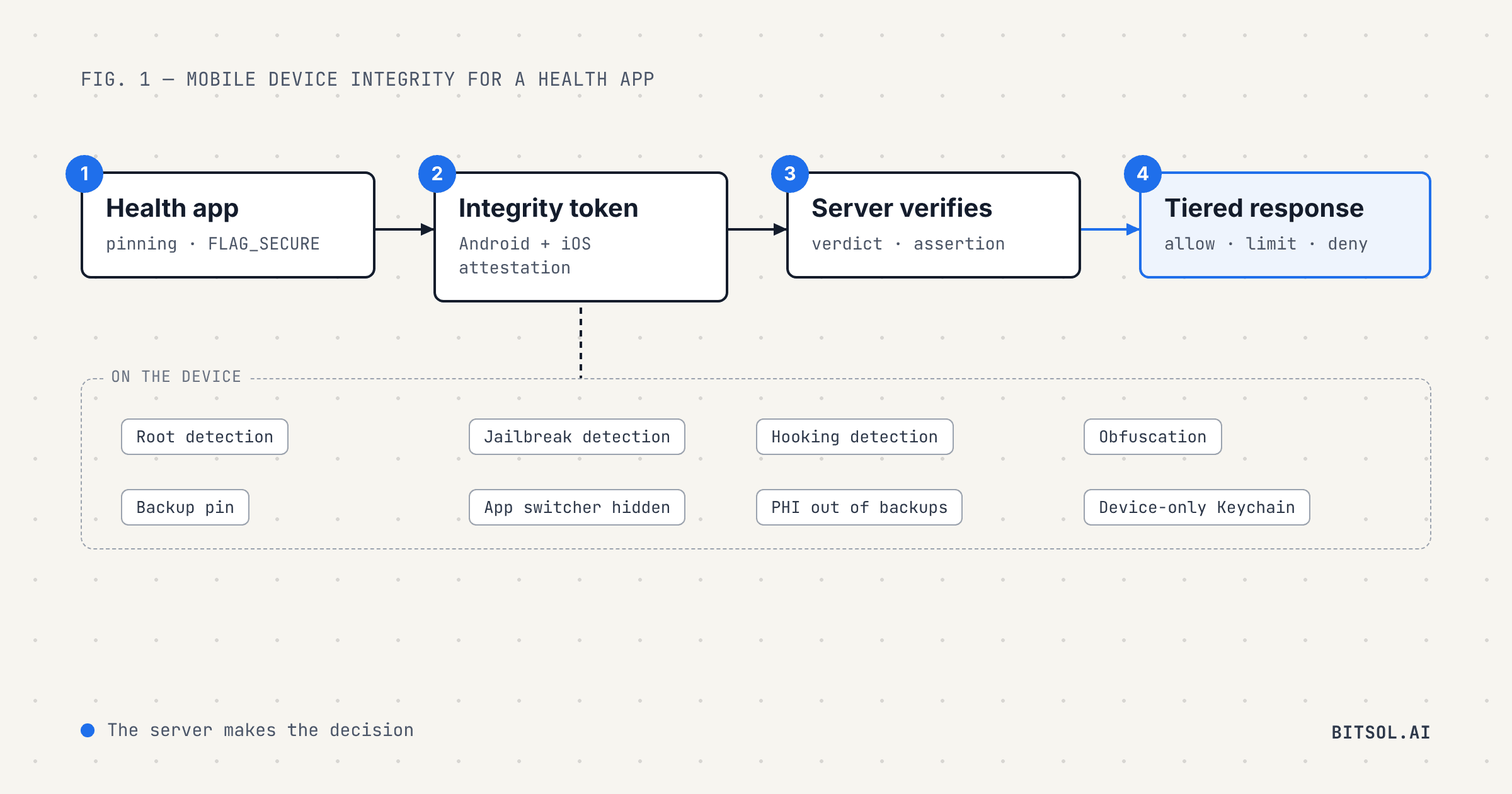
Three rules make the API useful rather than decorative. Check the verdict on your server, never in the app. Check requestDetails first, because Google says its values must match the original request before you trust anything else. And respond in tiers: Google suggests outcomes such as allow, allow with limits, and deny rather than a single pass or fail, and says the API works best alongside other signals rather than as your sole anti-abuse mechanism.
3. Play Store protection
Play Store protection includes Play App Signing, where Google manages your signing key and signs each release, and optional store listing device checks, which stop devices that fail integrity checks from installing your app from Google Play. Google notes that this does not stop users getting the app through other channels or sideloading, which is why the runtime checks above still matter.
4. Play Billing protection
If your app sells subscriptions or in-app purchases through Google Play, Play Billing protection helps protect that revenue from fraud and suspicious purchase activity. A health app with no in-app purchases can leave it aside.
iOS: App Attest
5. App Attest
Apple's App Attest answers the same question on iOS: is this request coming from a legitimate instance of your app? Apple's starting point is blunt: you cannot rely on your app's logic to check itself, because a compromised app can falsify the results. Instead, the app creates a hardware-based key in the Secure Enclave, Apple certifies that the key belongs to a valid instance of your app, and the app signs sensitive requests with it.
The work happens on your server, following Apple's validation steps:
Send a unique, one-time challenge of at least 16 bytes for every attestation and assertion, so captured requests cannot be replayed.
Verify the attestation against Apple's App Attest root certificate and your App ID, then store the public key against that user and device.
Verify every assertion's signature, and check that its counter is higher than the last one you saw.
Check
isSupportedfirst, as Apple's integrity guidance advises. Not every device can use App Attest, and Apple says to bypass it gracefully when it is unavailable, so decide in advance what a device without it may access.
Apple's integrity guidance also notes that App Attest keys survive app updates but not reinstallation, device migration or restoring from a backup, so plan for re-attestation in those cases.
6. The App Attest entitlement
App Attest depends on the App Attest environment entitlement. Adding the App Attest capability to your target adds it with the value development. Apple notes that builds distributed through TestFlight, the App Store or the Enterprise Program ignore that value and use the production environment. Your server has to match: Apple's validation steps check that the attestation's aaguid is appattestdevelop in development or appattest in production, and Apple says to keep development and production keys separate. Include both the capability and the server-side environment check in your release checklist.
Controls both platforms need
7. SSL pinning, with a backup pin and a rotation plan
Pinning makes the app trust only your own server's certificate chain, not any certificate a device happens to trust. On Android, the network security configuration takes a pin-set of public key hashes. Google says to always include a backup key, so a forced key or CA change does not cut users off until they update. The optional expiration date disables pinning on that date, which keeps apps that never update from breaking, but Google warns that an expiry date may let attackers bypass your pins after it passes.
On iOS, pins go in the app's Info.plist under NSPinnedDomains. Apple's guidance on identity pinning is cautious: pinning is not required, should be deployed only if necessary, and pinning CA public keys rather than server keys lets you rotate server certificates without a configuration update. Apple also recommends pinning more than one key, testing failure cases and planning a fallback experience if a connection fails.
For a health app, follow MASVS-NETWORK-2 and pin every endpoint you control, always ship a backup pin, and pair any expiry date with a rotation plan delivered through app updates. Keep cleartext traffic off: Android has disabled it by default since Android 9, and on iOS avoid App Transport Security exceptions.
8. Root and jailbreak detection
On Android, a strong root signal is the Play Integrity device verdict checked on your server, because an empty device integrity result can indicate root or hooking. On iOS, jailbreak detection runs inside the app. Both are covered by MASVS-RESILIENCE-1, "The app validates the integrity of the platform." OWASP's testing guide lists the common iOS checks: looking for files and directories associated with jailbreaks, trying to write outside the app's sandbox, and testing whether jailbreak-related URL schemes can be opened. It also warns that these checks can often be circumvented and that jailbreak detection is not very effective by itself. So pair local checks with server-side signals: Play Integrity on Android and App Attest on iOS.
9. Hooking detection and obfuscation
Tools that hook into a running app can read data or bypass checks. MASVS-RESILIENCE-4 asks apps to implement anti-dynamic analysis techniques, and MASVS-RESILIENCE-3 asks for anti-static analysis, such as obfuscation, which makes the code harder to read and modify. On Android, Play's automatic protection adds obfuscation to its anti-tamper checks.
10. A compromised-device response policy
Detection is only useful if the app does something with it. Write down what happens when a device fails an integrity check, decide it on the server and apply it the same way on both platforms. Google's own advice for Play Integrity is to respond in tiers, such as allow, allow with limits or deny, rather than block everything. For a health app, that might mean allowing sign-in but hiding PHI screens, requiring re-authentication, or blocking access and explaining why. Whatever you choose, log the event so your security team can see it.
11. Screen capture and app switcher protection
PHI screens should not end up in screenshots, screen recordings or the app switcher.
Android: FLAG_SECURE treats a window's content as secure, preventing it from appearing in screenshots or on non-secure displays. On Android 13 and later, setRecentsScreenshotEnabled(false) also stops the system using a screenshot of the activity in the recents screen.
iOS: UIKit takes a snapshot of your interface for the app switcher when the app moves to the background, and Apple says sensitive information must be removed from your views before that happens. To react to recording or mirroring, observe sceneCaptureState on iOS 17 and later, or isCaptured on earlier versions, and hide PHI while capture is active. The
userDidTakeScreenshotNotificationarrives after a screenshot is taken, so use it to respond, for example by logging the event, not to prevent the capture.
12. Keep PHI out of device backups
Device backups can copy app data to the cloud or to another phone. On Android, Auto Backup includes most app storage by default, and android:allowBackup defaults to true. Google suggests turning backup off for apps that handle sensitive information, or excluding specific files with dataExtractionRules on Android 12 and later and fullBackupContent on Android 11 and earlier. Google also notes that on Android 12 and later, turning backup off may not stop device-to-device transfers on every manufacturer's devices, so exclusion rules are worth setting either way.
On iOS, store tokens and keys in the Keychain with an accessibility class such as kSecAttrAccessibleWhenUnlockedThisDeviceOnly. Apple says items with this attribute are accessible only while the device is unlocked and do not migrate to a new device, so they are not present after restoring a backup from a different device. For cached files, isExcludedFromBackup keeps them out of backups, though Apple notes it is meant for caches and support files rather than user documents.
A mobile security checklist for your health app
Android: Play App Signing and App Bundles, automatic protection on, Play Integrity verdicts checked on the server with
requestDetailsfirst.Android: device integrity, app integrity, licensing and app access risk verdicts mapped to a tiered response.
iOS: App Attest with server-issued challenges, attestation and assertion verification, counter checks and a plan for unsupported devices.
iOS: App Attest capability added, and the server checking the development or production environment.
Pinning on every endpoint you control, with a backup pin and a rotation plan; no cleartext traffic and no App Transport Security exceptions.
Root and jailbreak detection, backed by server-side integrity signals.
Hooking detection and obfuscation.
A written compromised-device policy, enforced on the server and logged.
FLAG_SECURE and recents protection on Android; snapshot hiding and capture detection on iOS.
PHI excluded from device backups; tokens in device-only Keychain items.
How Bitsol approaches mobile security for health apps
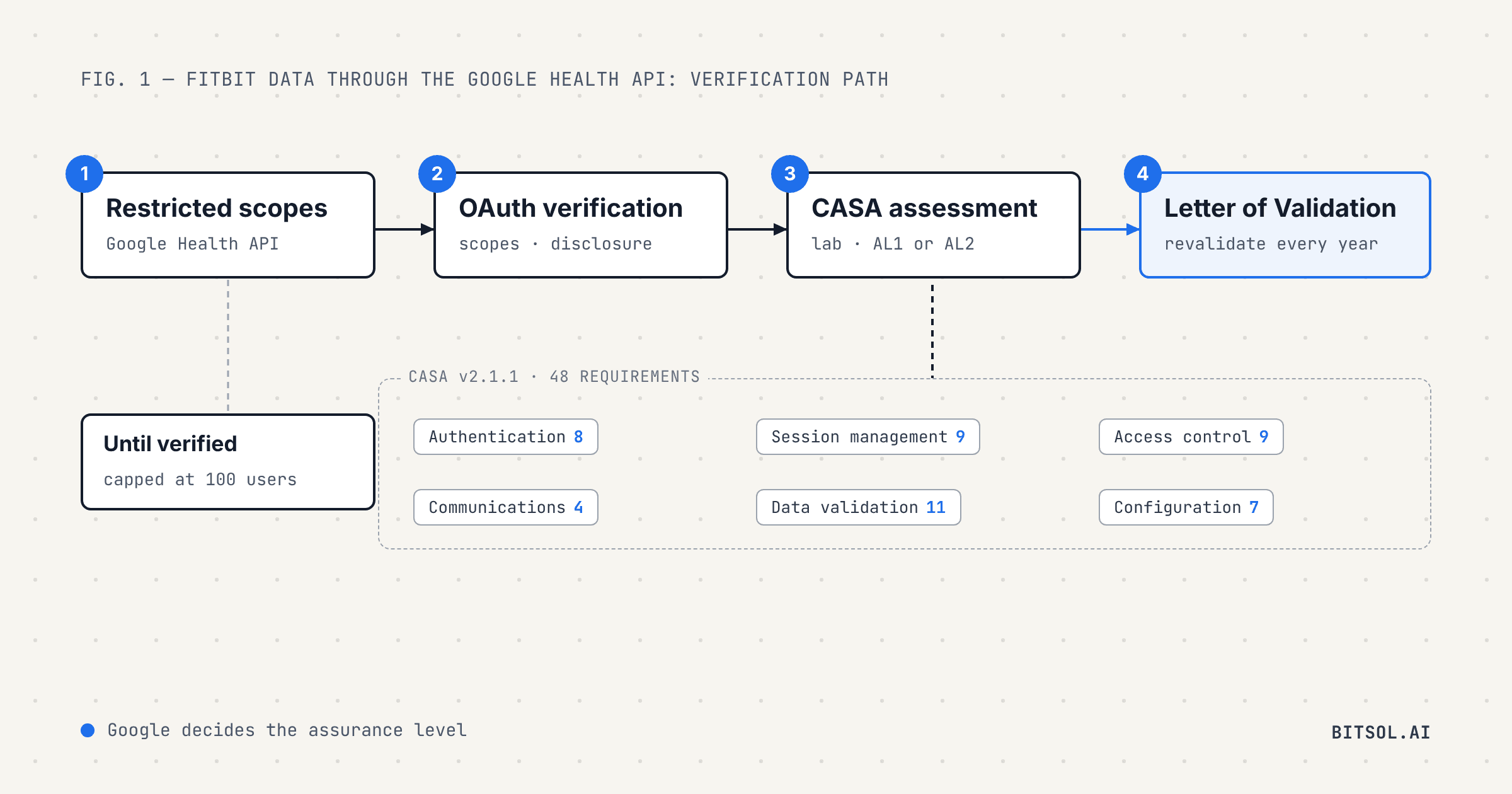
Bitsol builds healthcare software only, with 50+ healthcare products shipped. The mobile app is only one side of a health product, so we pair these controls with the server-side controls in our guide to HIPAA-compliant API design. If your app connects to wearables, our guide to passing CASA for the Google Health API covers the assessment Google requires for Fitbit data. To launch a compliant mobile app quickly, see how our 8-week HIPAA-compliant MVP launch works.
Frequently asked questions
Does HIPAA require jailbreak or root detection?
HIPAA does not name it. It requires a risk analysis and sets integrity and transmission security standards for electronic PHI. A compromised device is a risk a mobile health app has to assess, and root and jailbreak detection, backed by server-side checks, is a common way to address it.
Is SSL pinning required for a health app?
No regulation requires it by name. OWASP MASVS-NETWORK-2 asks apps to pin all endpoints under the developer's control. Apple advises using pinning only if necessary, so if you pin, include a backup key and plan for certificate rotation.
What is the difference between Play Integrity and App Attest?
Both let your server check that a request comes from a genuine copy of your app. Play Integrity on Android also reports whether the device is genuine and certified and whether the app came from Google Play. App Attest on iOS uses a hardware-backed key in the Secure Enclave that Apple certifies as belonging to a valid instance of your app.
Can an iOS app stop screenshots of patient data?
Apple's documentation describes removing sensitive information before the app switcher snapshot and detecting screen recording and mirroring so you can hide content. The screenshot notification arrives after a screenshot is taken, so it lets you respond rather than prevent it. On Android, FLAG_SECURE keeps a window out of screenshots.
Should integrity checks run in the app or on the server?
On the server. Apple says a compromised app can falsify its own checks, and Google says to check Play Integrity verdicts on your backend and respond based on them. Local checks still add a layer, but the server makes the decision.